Introduction to filesystem structure
In Linux, many things are done by using files; including recording data, interacting with devices and getting information about the system. Files need to be properly ordered in order to be easily usable. A structure called filesystem is used for ordering and managing files. Before looking at files, let's look at filesystems first.
Filesystems
Operating systems use a structure called filesystem in order to manage files easily. Filesystems are structures which contain data about files, file owners, free and used blocks and more. The main filesystem used in GNU/Linux is called ext4. Ext4 partitions the disk space with structures called inodes. The number of inode files are in actually can be checked with the -i option of the ls command. Although this has no practical use for many users, it's an interesting thing to check. These inodes contain the actual data of the files. Other filesystems use other ways to store data but that's out of scope of this guide.
Partitions
Disks are further partitioned by partition tables. Partitions symbolize physical parts of the disk. They provide a way to divide the disk by the usage of the files. For example, a disk can be partitioned into boot partition, the system partition and the user partition. This provided a way to organize data and prevent data loss in old times. When a power or hardware failure happened, only the filesystem in that partition took damage instead of all of the disk. Although journaling prevents data loss and filesystem integrity issues nowadays, it might be a good idea to partition the disk for numerous reasons. Common partitioning schemes include boot, user, swap; boot, system, user, swap. Although more options exist, these options will be mentioned with the structure of filesystem. Partitions in the system can be seen with the df -h command. The -h argument makes output more human-readable.
What is a file?
After mentioning filesystems, it would be pointless not to mention files. In Linux, a file is a data stream in which data can be given and taken. In a Linux system, many things are considered files. For example many devices are considered files as they can be presented as a data stream. This structure presents a comfortable way to deal with different kinds of data. As many things are considered files, file manipulation methods can technically be used in those things. These include classic files, directories, links and block devices.
Types of files
When the ls command is run with the -l option, additional information appear on the left of the entries.
lrwxrwxrwx 1 username groupname    8 Kas 13 21:12 copy.txt -> text.txt
drwxr-xr-x 2 username groupname 4096 Kas 13 21:12 hello
-rw-r--r-- 1 username groupname    0 Kas 13 21:12 text.txt
The letters on most left shows some knowledge about files. The letters at the most left side shows the type of that file. Remaining letters shows the permissions of the file. File permissions will be mentioned in another section.
| Letter | - | l | d | b | c | s | p |
|---|---|---|---|---|---|---|---|
| Meaning | Simple file: a simple file without any other features | Link: a file that shows another file | Directory: a file that is a list of files | Block device: a device that takes data as block, such as storage devices | Special file: a mechanism used for input and output | Socket: a file that allows inter-process communication with TCP-IP semantics | Named pipe: like sockets but doesn't neccesarily have a network like structure |
Some terms might be unfamiliar with people which came from different operating systems. Some of them are either for the system, programs or more advanced users. Although most of the user base might not have to deal with these types of files, they use them daily in background.
Filesystem hierarchy
The filesystem starts from the root directory. The root directory is the directory that contains all of the other directories and files. In the file hierarchy, root directory presents the upmost position. Below the root, there are other directories, such as /bin, /etc, /home. These directories also contain files and directories. The diagram on the right shows a simplified overlook of the filesystem. Root is at the top and the others are below the root, and there are more things that are under them. The directories under the root directory are used by the system and serve different purposes. Devices and partitions can also be mounted under the root directory, enabling different partitioning schemes. There is a list at below which shows the purposes of directories under the root directory.
Absolute and relative paths
When navigating filesystem, you will encounter two different kinds of paths. One of them is absolute, starting from the root directory to the destination. The other path is relative, starting from the current directory to the destination. A relative path would be something as lilyyucarp/Downloads/2.png while a relative path would be something like /home/lilyyucarp/Downloads/2.png. Mind the difference, one of them starts from the beginning while the other is assuming a current directory (in this case /home). Directory aliases (like "." and "..") can be used in the relative path while they aren't used in the absolute path.
Warning
In Linux and Unix-based operating systems, file names are case-sensitive. That means "directory" and "Directory" are two different names.
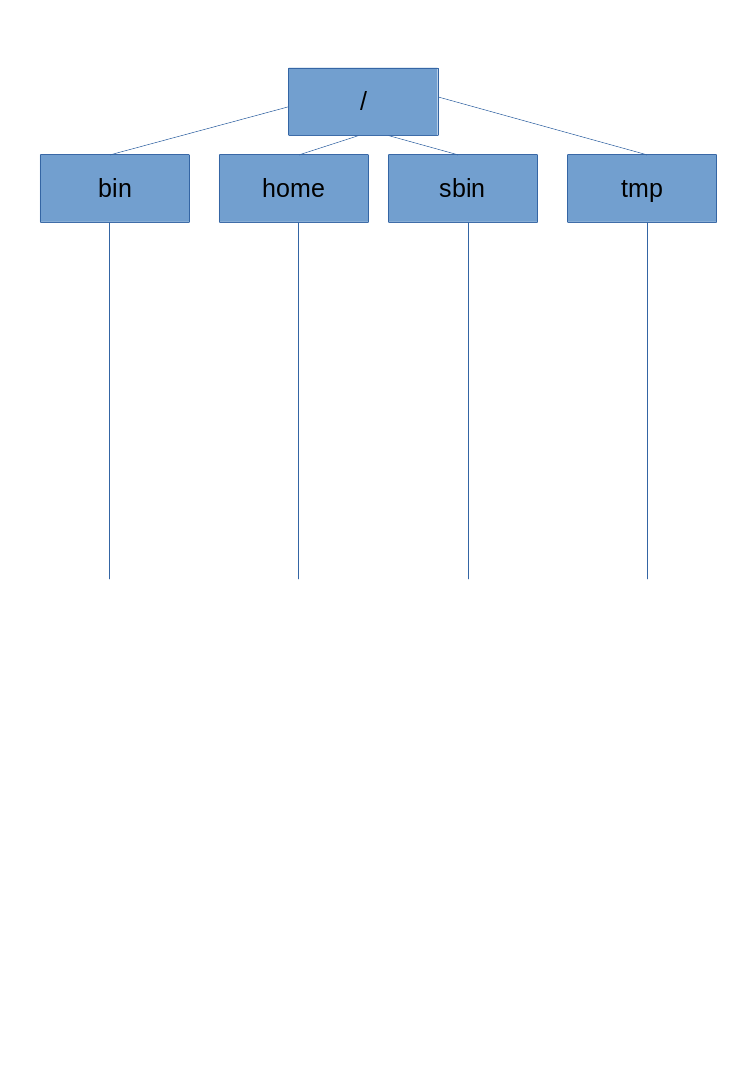
The directories under the root directory
| Directory | Meaning |
|---|---|
| /bin | The directory containing most of the executable files |
| /boot | The directory containing files important for booting, such as the kernel image |
| /dev | The device directory |
| /etc | The directory containing system configuration files |
| /home | The directory containing the home directories of users |
| /mount | Used for mounting external partitions |
| /opt | Optional executable files |
| /root | The home directory of the root user |
| /tmp | The directory containing temporary files |
| /usr | The directory containing user-related configuration files |
The list isn't complete but it contains all of the commonly used directories in the system. Many of these directories are used for the operations in background and using these directories for daily workflow isn't a good practice. These directories don't have to be in the same partition. For example, the root directory might be on the first partition while the home directory is on the third partition. While installing, your distribution should have asked which partition scheme do you want to use. These options provide a nice hand of help for new users. Home users don't need to worry about assigning partitions for different purposes although different partitions containing different directories might be seperated in the setup process.